USB Firmware Compilation
Start Compilation
- A host computer with the
klipperservice installed Connect via SSH over network - And the device should be properly connected to the host computer
- Note: Please use a standard host computer, such as Raspberry Pi, FLY board, etc. If it is a modified host computer (e.g., WiFi dongle, Redmi devices), we cannot provide technical support due to numerous issues with such hosts
- Firmware Compilation Guide for Standard Host
- FAST System Firmware Compilation Guide
- Applies to standard host computers running systems like Raspberry Pi, FLY board, etc.
- Do not use the
ROOTuser for any operations on such hosts - Please perform operations using a regular user account
- To switch users, for the
FlyOS-Armbiansystem, please use the commandsu flyto switch to the regular user - For other systems, use the command
su <your host username>to switch to the regular user
su <your host username>
- Notes for the
FlyOS-FASTsystem- The default username for the
FAST systemisroot, and the password ismellow - Firmware compilation must be performed using the
rootuser - The
FAST systemonly has theROOTuser—you do not need to switch users!!!
- The default username for the
::: tip
- Please ensure that the host machine can connect to the network normally.
- Before compiling the firmware, use SSH to log in to the host machine via the network.
- Do not use a serial port tool to log in to the host machine.
:::
Klipper Firmware Compilation and Configuration Page Operation Instructions
::: tip
Please make sure that the keyboard input method is in half-width mode, i.e., English mode.
:::
- The key
↑(up arrow) and↓(down arrow) on the keyboard are used to move the cursor up and down to select menu items. - The confirm key
Enteror spacebarSpaceis used to check the menu or enter a sub-menu. - The exit key
ESCis used to return to the previous menu. - The
Qkey is used to exit the Klipper firmware configuration page. - When exiting the Klipper firmware configuration page and there is a prompt, press the
Ykey to save the configuration file.
::: warning
If there are fewer options in the configuration page, please first check [ ] Enable extra low-level configuration options to display some hidden options.
:::
Below is the introduction on how to compile the firmware:
-
After connecting to SSH, enter the following command and press Enter:
cd ~/klipper && rm -rf ~/klipper/.config && rm -rf ~/klipper/out && make menuconfig -
Where
rm -rf ~/klipper/.config && rm -rf ~/klipper/outis to delete previous compilation data and firmware.make menuconfigis to compile the firmware. After execution, the following interface should appear: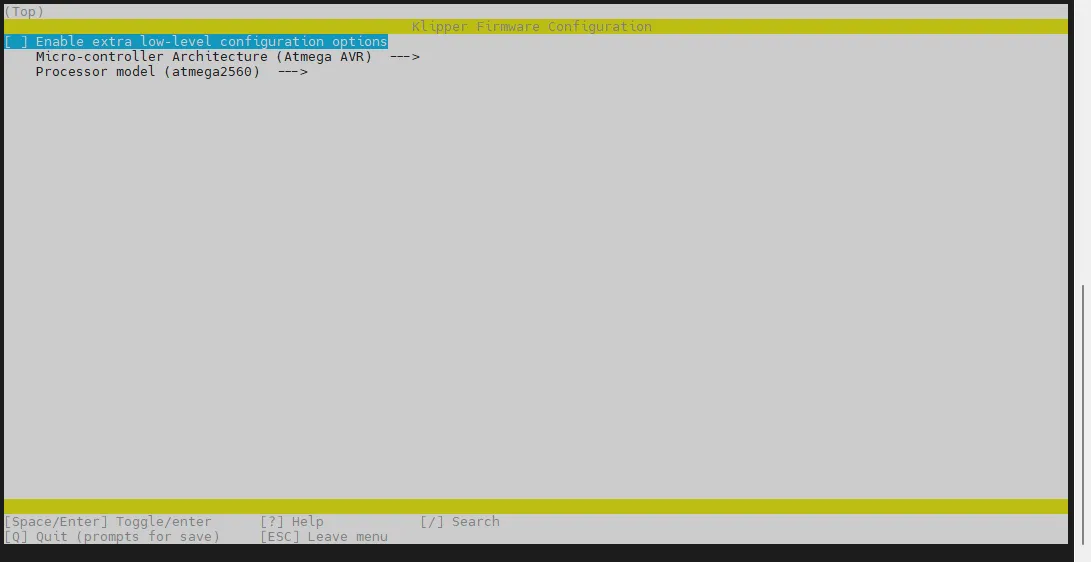
-
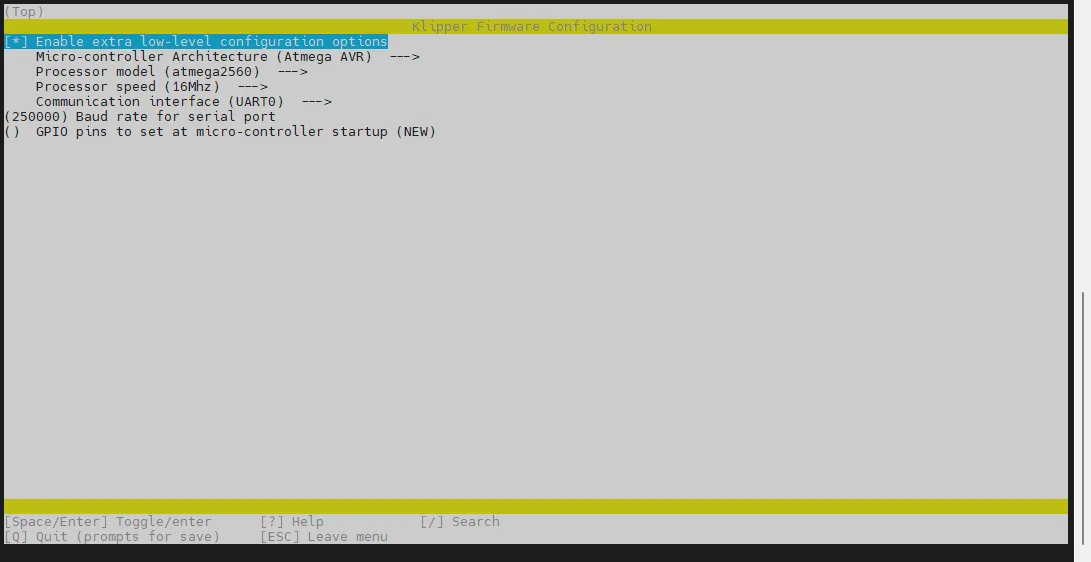
Select Enable extra low-level configuration options and press Enter
-
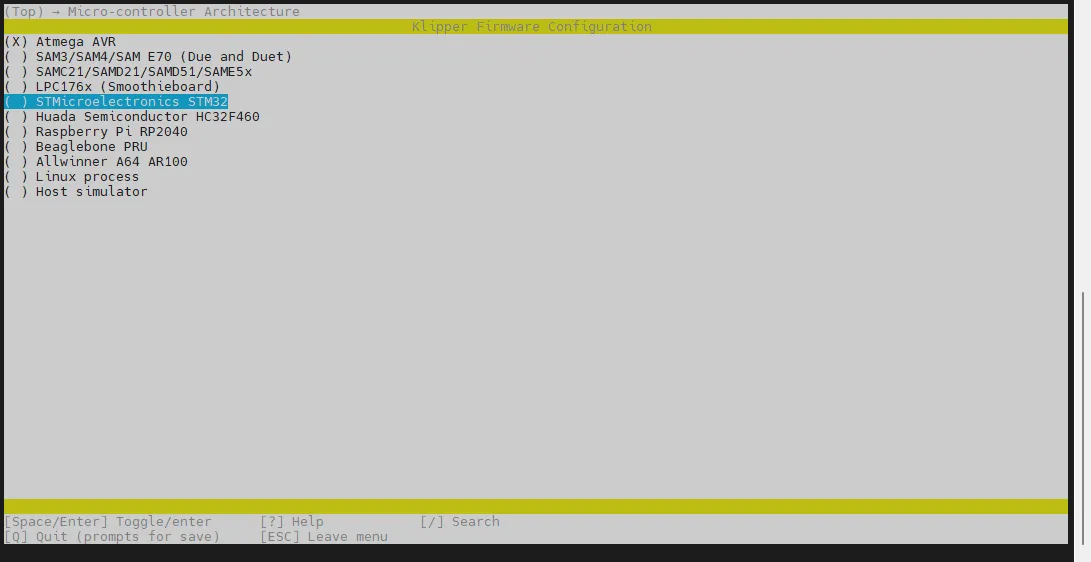
Enter the menu Micro-controller Architecture then select STMicroelectronics STM32 and press Enter
-
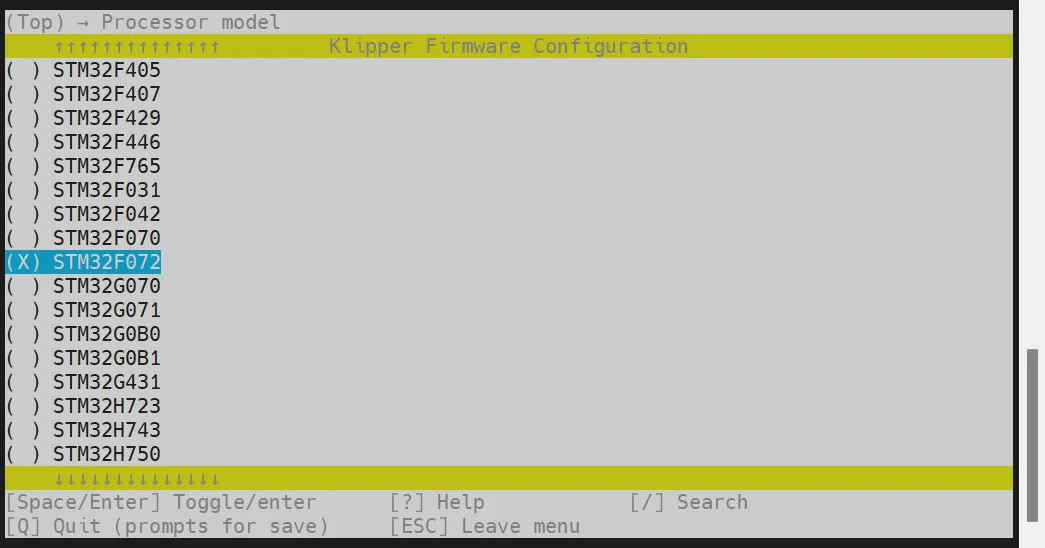
Enter the menu Processor model, select STM32F072 and press Enter
-
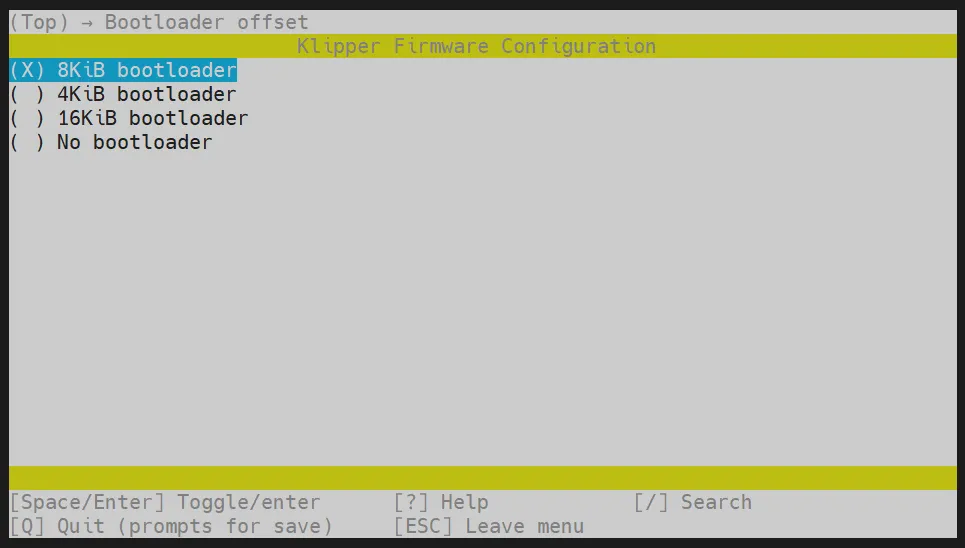
Select Bootloader offset, choose: 8KiB bootloader
-
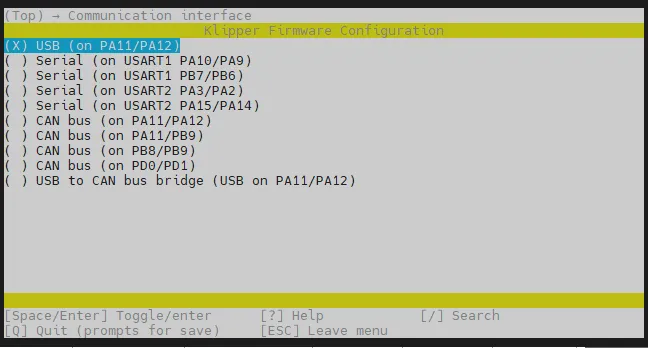
Communication interface, select: USB (on PA11/PA12) and press Enter
-
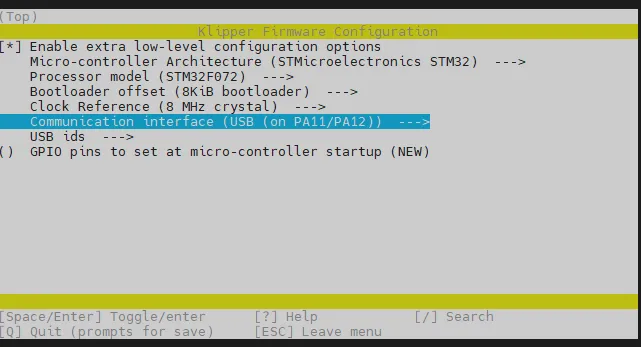
Please verify against the following image to ensure it matches before proceeding
- Press the
Qkey. When Save configuration appears, press theYkey.
- The configuration should now be saved, and you should exit to the command line interface.
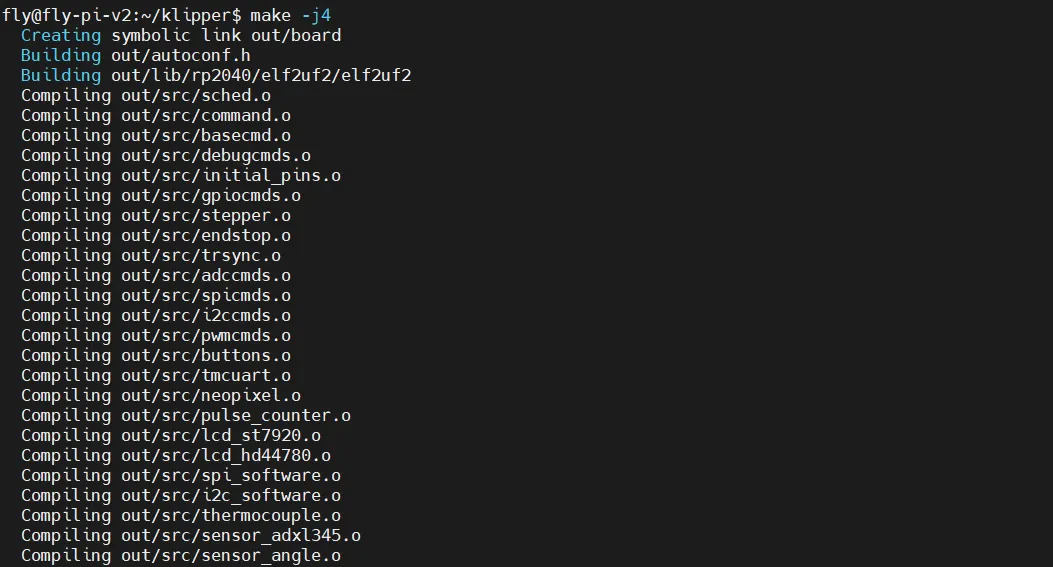
- Enter the command below to start compilation. This will take some time.
make -j4
-
Compilation is successful if the final output contains the following:
Linking out/klipper.elf
Creating bin file out/klipper.bin
Enter Flashing Mode
- Connect the mainboard to the host computer using a Type-C data cable, then double-click the reset button. At this point, an LED on the mainboard should start blinking.
- If the LED does not blink, please re-flash the katapult firmware: Flash Katapult Firmware
- If the LED does not blink, after flashing the katapult firmware, proceed to the next step.
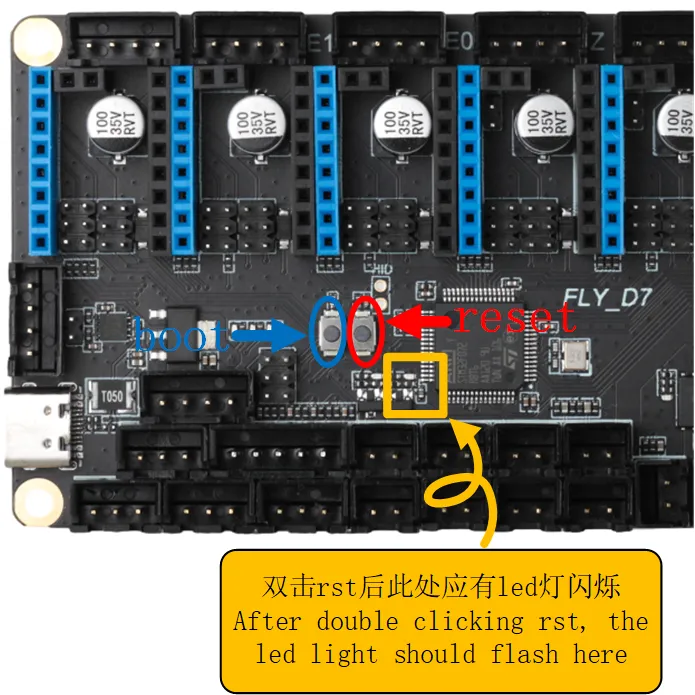
Confirm Entry into Flashing Mode
- Please ensure that the host machine can connect to the network normally and ensure that the data cable connecting the lower-level machine to the host machine has data transmission function.
- After SSH connecting to the host machine, input
lsusband press Enter. If the information circled in the following picture appears, you can proceed to the next step.- If there is no feedback at all, this is a system problem of the host machine, and we are unable to help. You need to replace with a confirmed normal system or replace the host machine.
- If the prompt says there is no
lsusbcommand, you can execute the following command to install it:sudo apt-get install usbutils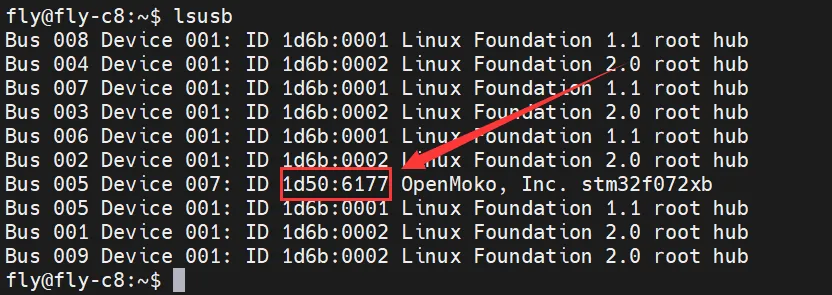
1d50:6177belongs to the device you will use this time.- Some host machines may not fully display or fail to display due to system problems.
- If the
lsusbcommand can display the device but does not show1d50:6177, please try replacing the data cable and connecting the mainboard to another USB port on the host machine.
- If you have executed the above steps before and successfully burned the Klipper firmware, and the mainboard is running normally, but you just want to update the Klipper firmware, please directly check the
Firmware Updatesection in the right menu bar of this page.
You must query the 1d50:6177 device before proceeding to the next step.
Flash the Firmware
- Internet connection is required when installing the flashing plugin, please ensure your host machine is properly connected to the internet.
- If already installed, there's no need to install again.
Start Flashing
-
Non-fly host machines must execute the code below to install the dependencies required for firmware flashing, otherwise the firmware cannot be flashed!
- Default Repository
- Domestic Repository
cd && git clone https://github.com/Arksine/katapult.gitcd && git clone https://gitee.com/MrCakeFuck/katapult.git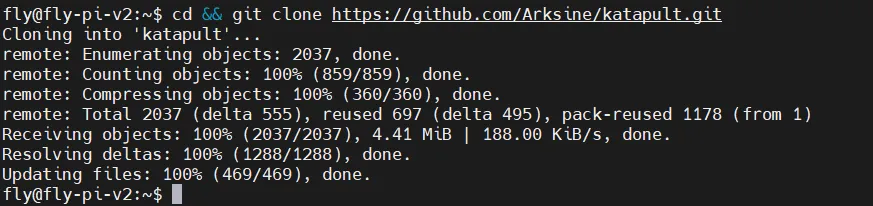
-
Use the command below to search for your device ID; the ID shown in the figure below should appear (Note: the ID shown in the image is for reference only, each motherboard has a different ID):
ls /dev/serial/by-id/*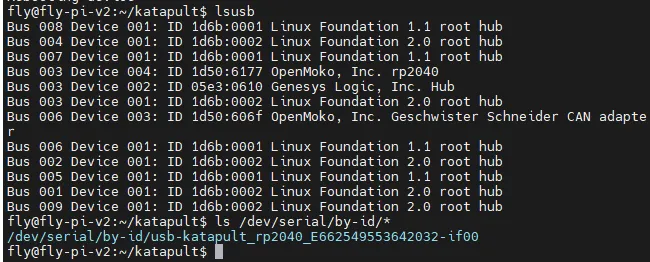
-
Use the code below to flash the firmware. Please ensure the firmware has already been compiled and replace
<your motherboard ID>with the ID obtained in the previous step:
- Fly-Armbian and Standard Host Machine Flashing Method
- Fly-FAST Flashing Method
~/klippy-env/bin/python ~/katapult/scripts/flashtool.py -d /dev/serial/by-id/<your motherboard ID>
python ~/katapult/scripts/flashtool.py -d /dev/serial/by-id/<your motherboard ID>
-
Below is a reference:

-
After successful flashing:
Firmware Update
- USB Firmware Update
- Bridged CAN Firmware Update
-
Use the command below to search for your motherboard ID; the ID shown in the figure below should appear (Note: the ID shown in the image is for reference only, each motherboard has a different ID):
ls /dev/serial/by-id/*
In the image below, /dev/serial/by-id/usb-katapult_rp2040_E662549553642032-if00 is the motherboard ID.
-
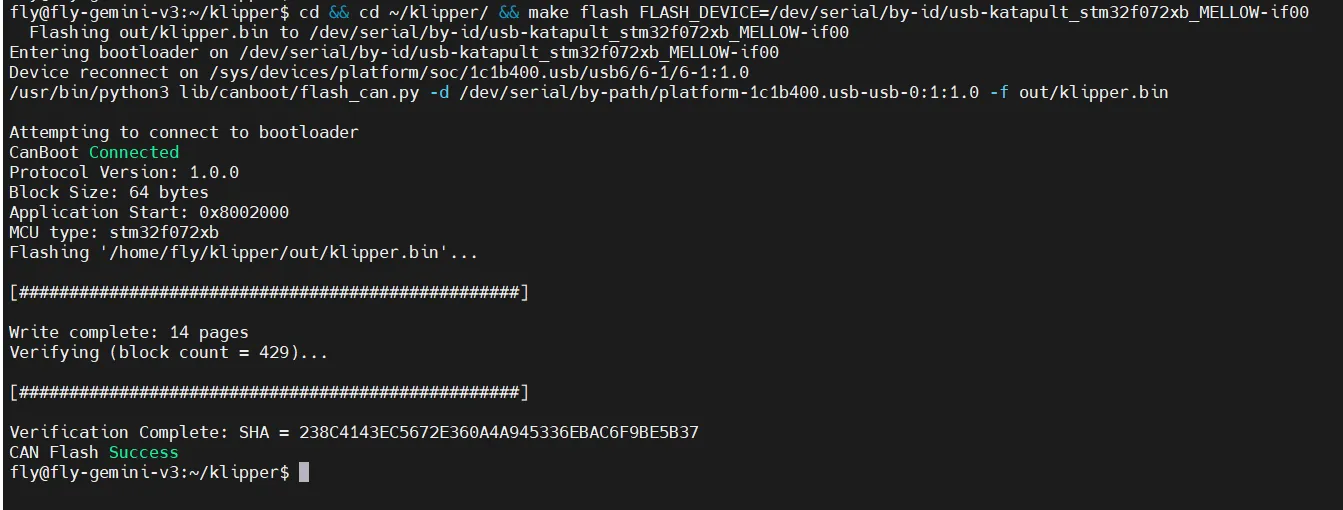
After compiling the latest firmware, run the following command to update the USB firmware. Please replace
<your motherboard ID>with the ID obtained in the previous step:cd ~/klipper/ && make flash FLASH_DEVICE=<your motherboard ID>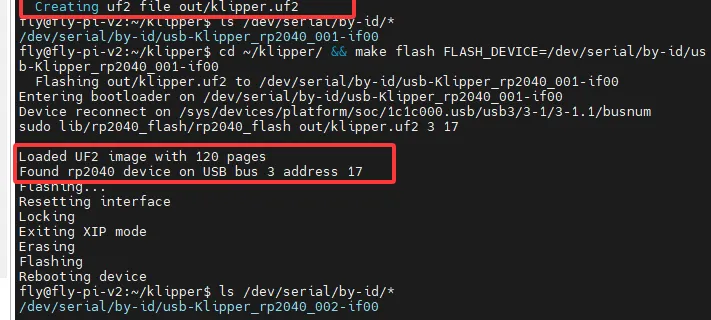
- To update the USB bridged CAN firmware, after compiling the latest firmware, run the following command to reset into Katapult. (As shown in the image below, the ID shown is for reference only; please use the ID in your configuration file.)
<your motherboard ID>is the CANBUS UUID of the motherboard in your printer.cfg configuration file.
- Fly-Armbian and Standard Host Machine Reset to Flash Method
- Fly-FAST Reset to Flash Method
- Replace
<your motherboard ID>with the ID obtained in the previous step~/klippy-env/bin/python3 ~/katapult/scripts/flashtool.py -i can0 -r -u <your motherboard ID>
- Replace
<your motherboard ID>with the ID obtained in the previous steppython3 ~/katapult/scripts/flashtool.py -i can0 -r -u <your motherboard ID>
- In the image below,
f95cee90e1f9is the CANBUS UUID of the motherboard.

-
After resetting into Katapult, use the following command to search for your motherboard ID; the ID shown in the image below should appear (Note: the ID shown in the image is for reference only, each motherboard has a different ID):
ls /dev/serial/by-id/*
In the image below, /dev/serial/by-id/usb-Klipper_stm32f072xb_43002C000951324757373520-if00 is the motherboard ID.

-
Make sure to flash the firmware after the new firmware has been compiled. Replace
<your motherboard ID>with the ID obtained in the previous step:cd ~/klipper/ && make flash FLASH_DEVICE=<your motherboard ID>
Solution for Flashed Wrong Firmware
- Power off the motherboard, power it on again, and quickly double-click the reset button to re-enter flashing mode.
- Or use Windows/host machine to re-flash the Katapult firmware Flash Katapult Firmware