Power Loss Shutdown and Power Loss Recovery
Important Notes
1. Function Concepts and Processes
-
Power Loss Shutdown
- Concept: Upon detecting an abnormal power loss, the system does not save the current printing state and directly performs a safe shutdown.
- Recovery Process: After power is restored, the device will automatically reboot and stand by. The previous print job is aborted, and you need to manually start a new print.
-
Power Loss Recovery
- Concept: Upon detecting an abnormal power loss, the system immediately saves the current print progress (e.g., position, layer height) and then shuts down.
- Recovery Process: After power is restored, user confirmation is typically required before the device can resume and complete the unfinished print from the point of interruption.
2. Core Rules
- Power Loss Shutdown and Power Loss Recovery are mutually exclusive functions and cannot be enabled simultaneously.
- If the Power Loss Shutdown function is enabled, the Power Loss Recovery function will automatically become inactive.
3. How to Choose
- Choose "Power Loss Shutdown": If you are more concerned about electrical safety, or want the device to automatically start up and stand by after power is restored without resuming an interrupted print, enable this function.
- Choose "Power Loss Recovery": If you frequently perform long-duration print jobs that cannot afford to fail and wish to resume printing from the interruption point after a power loss, enable this function.
Wiring
Important Precautions
- FLY Pi-V2 Power Loss Shutdown/Recovery Function Notes
- When connecting to other host computers via USB, the 5V power line must be disconnected or isolated (e.g., by cutting the cable or using a USB cable with only data pins).
- Power must be supplied using the dedicated KPPM module. Do not use other power supply methods.
- If the 5V connection between the mainboard and the host computer cannot be disconnected, the mainboard must be completely powered off before restarting. Otherwise, it may fail to boot normally.
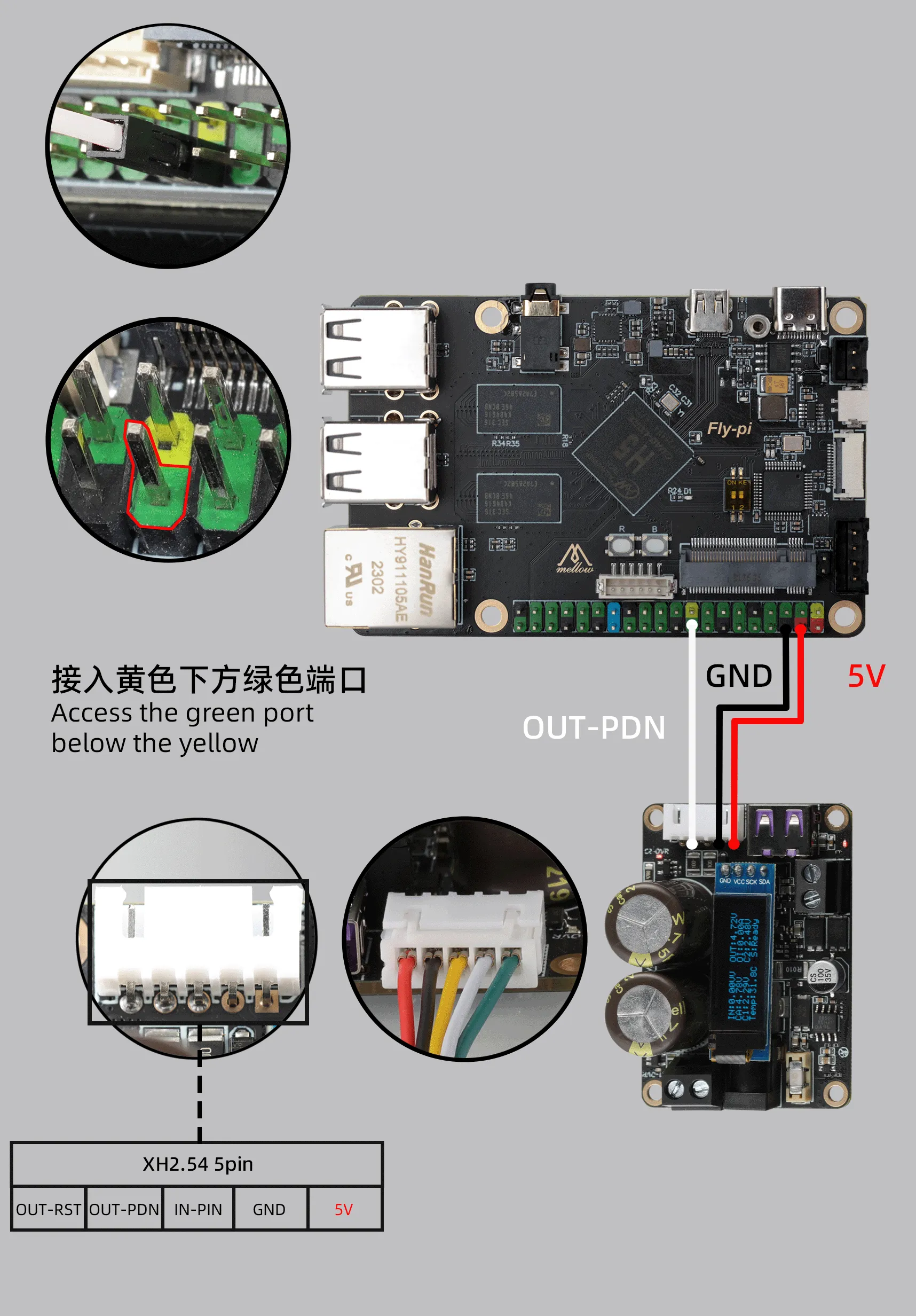
- FLY-Pi-V2 Using 5V Wiring
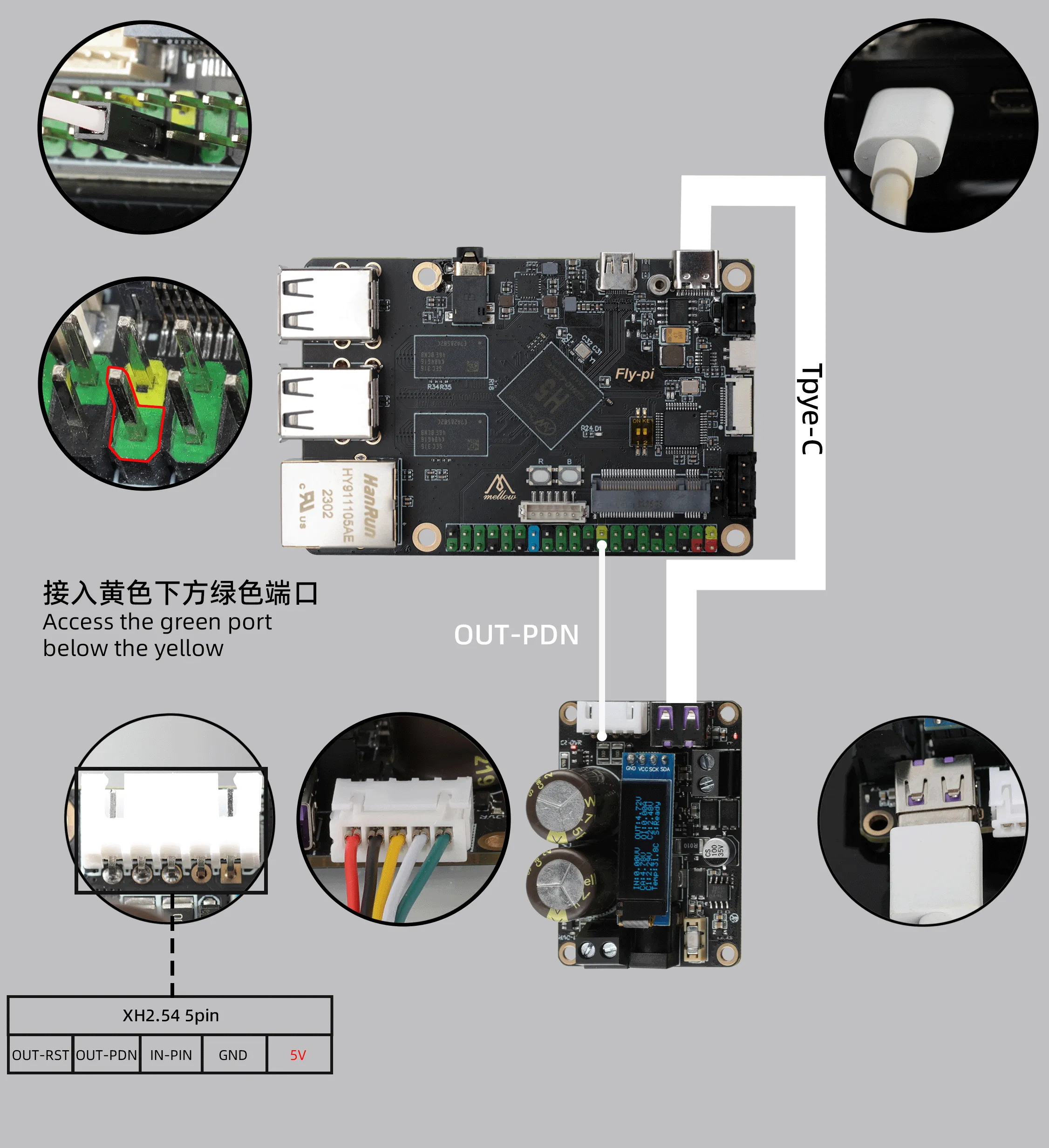
- FLY-Pi-V2 Using USB Wiring
- FLY-Pi-V2 using 5V wiring
- FLY-Pi-V2 using USB wiring
Configuration
- Power Loss Shutdown
- Power Loss Recovery
Configure Power Failure Shutdown
Note
- Method to configure power failure shutdown
-
Enter the device's IP address in the browser address bar, for example:
http://192.168.6.179 -
Access the configuration page
- Open the device IP address in the browser, for example:
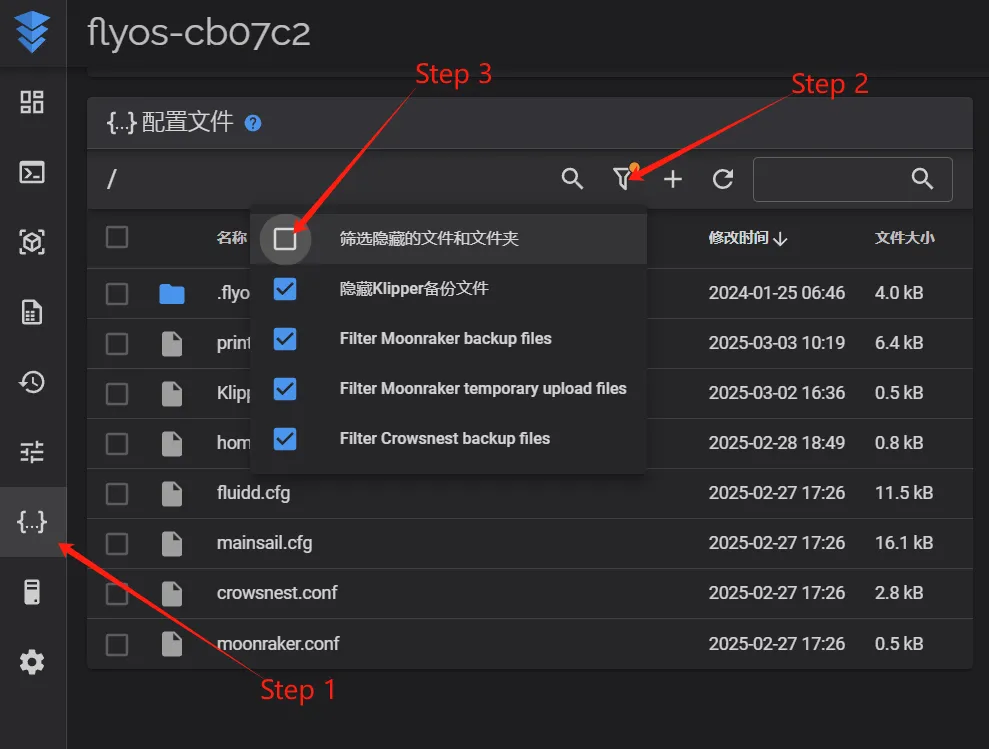
http://192.168.1.2/ - In Fluidd, uncheck the option ->
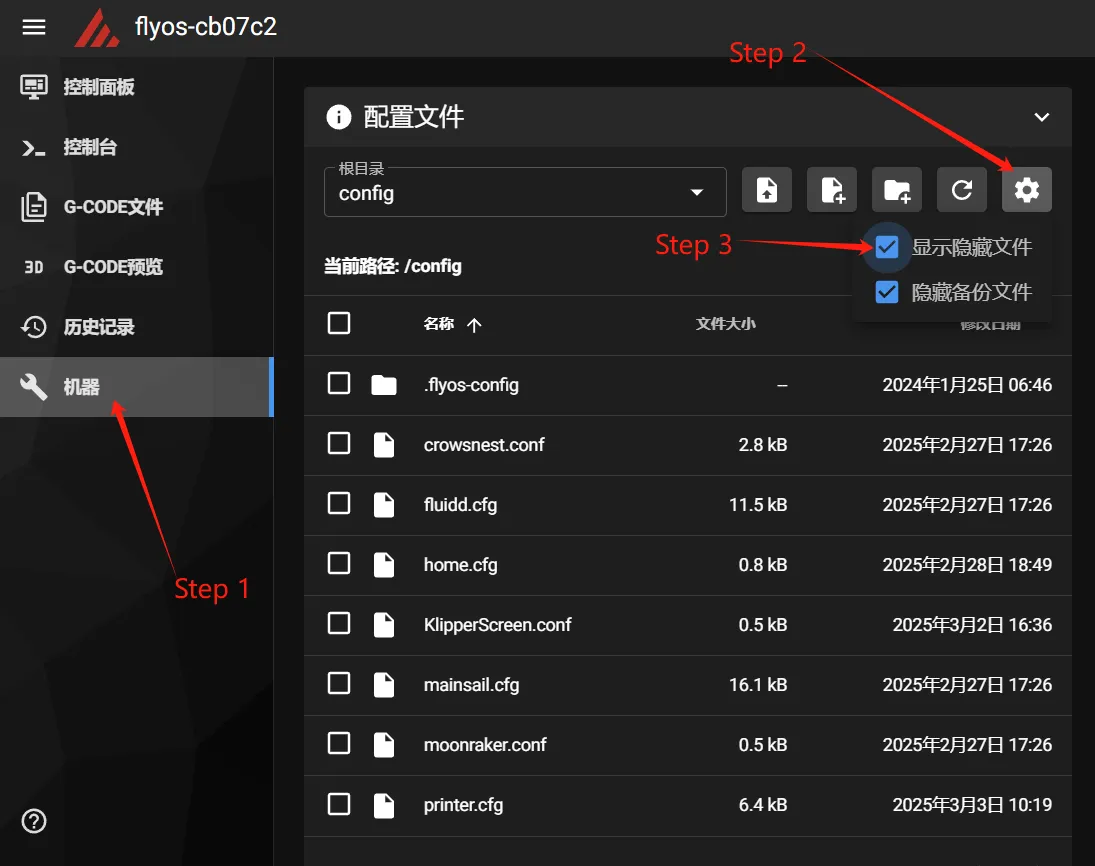
Filter hidden files and foldersas shown in the left image below. - In Mainsail, check the option ->
Show hidden filesas shown in the right image below.
- You should now see the
.flyos-configfolder. Enter this folder and locate thesys-config.conffile. - The
sys-config.conffile is a symbolic link to theconfig.txtconfiguration file in the removable disk namedFlyOS-Conf.
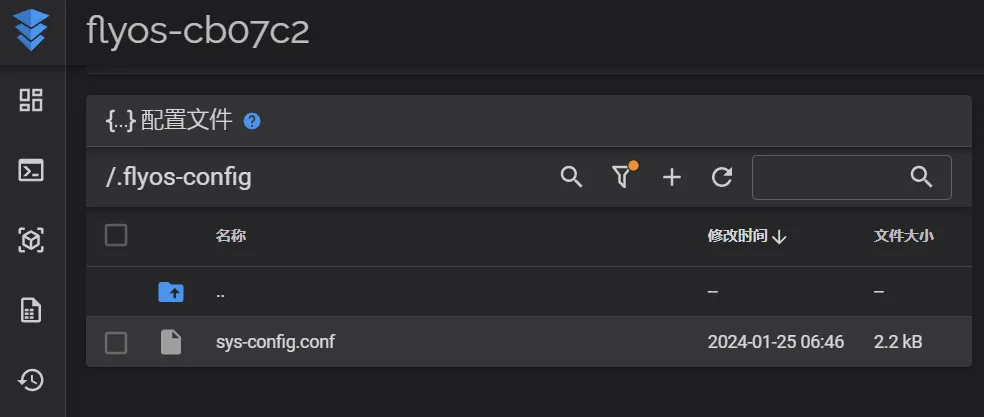
- Open the
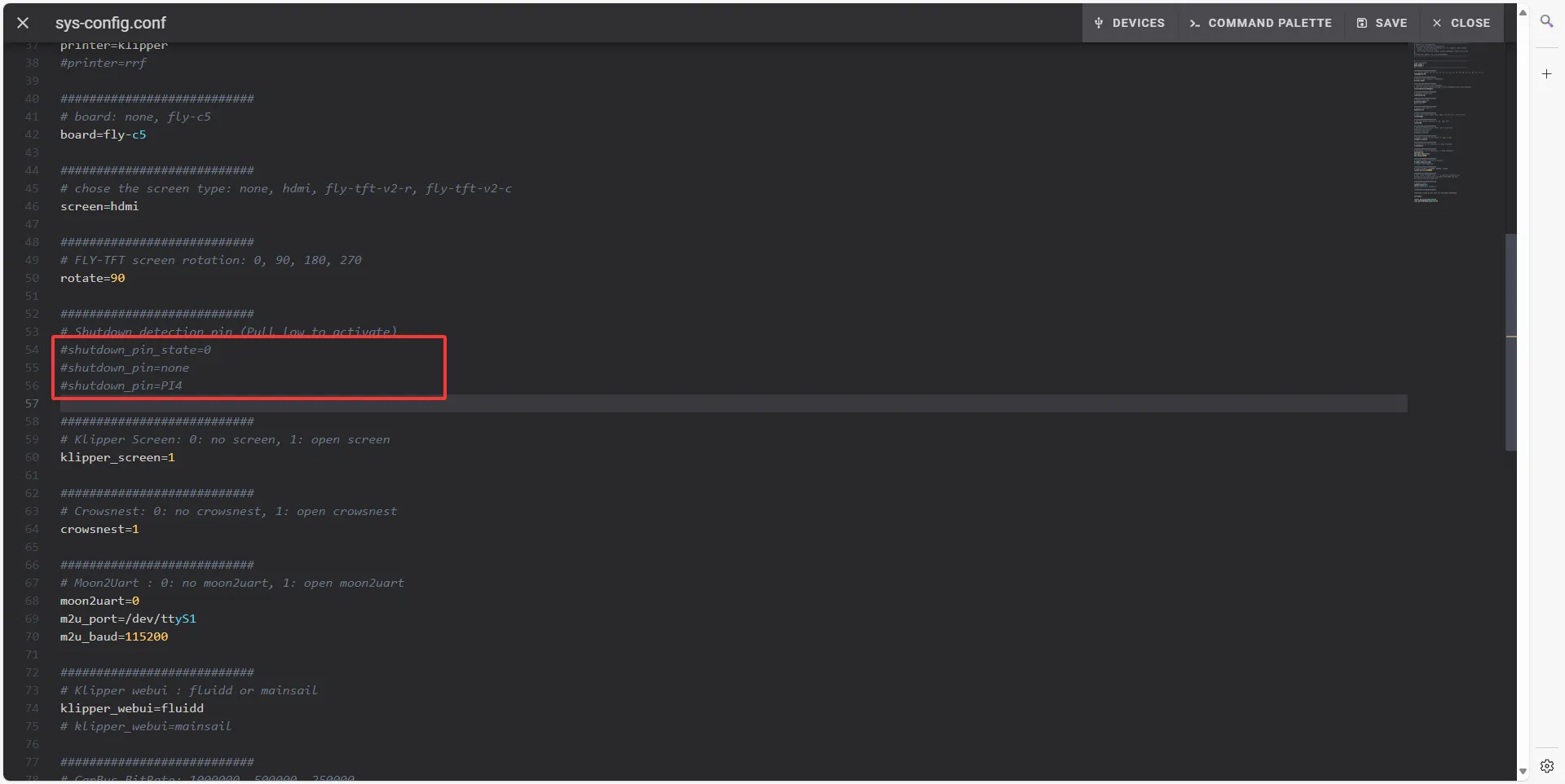
sys-config.conffile and locate the two configurationsshutdown_pin_stateandshutdown_pin=, and modify them to match the configurations below: - Please note that
shutdown_pin=noneneeds to be deleted or preceded by a#symbol.
- Open the device IP address in the browser, for example:
shutdown_pin_state=1
shutdown_pin=PA21
- Then
Save->Closeand restart the system.
Disable Power Failure Shutdown
Note
- The power failure shutdown function needs to be disabled, otherwise the power failure resume printing function cannot be used.
- The power failure resume printing function includes an automatic shutdown feature after saving progress.
- Please ensure that no other power supply is connected to the host computer, otherwise it will not be able to power on.
-
Enter the device's IP address in the browser's address bar, for example:
http://192.168.6.179 -
Access the configuration page
- Open the device IP address in the browser, for example:
http://192.168.1.2/ - In Fluidd, uncheck -> "Filter hidden files and folders" as shown on the left in the image below.
- In Mainsail, check -> "Show hidden files" as shown on the right in the image below.
- You will now see the
.flyos-configfolder. Inside this folder is thesys-config.conffile. - The
sys-config.conffile is a symbolic link to theconfig.txtconfiguration file in the removable diskFlyOS-Conf.
- Open the
sys-config.conffile and locate the configurationsshutdown_pin_stateandshutdown_pin=. - Add a
#at the beginning of these configuration lines. - Then click
Save->Closeand restart the device.
- Open the device IP address in the browser, for example:
plr.cfg Configuration File
- In the printer configuration page, locate the
plr.cfgfile. - Clear all its contents, then paste the configuration below into it
- The configuration file content is as follows:
[mcu host]
serial: /tmp/klipper_host_mcu

[power_loss_resume]
power_pin: host:gpiochip1/gpio21
is_shutdown: True # 是否执行关机操作, 默认为启用
paused_recover_z: -2.0 # 如果停机时为暂停打印,续打时Z移动距离, 默认为不移动
start_gcode:
    # 开始续打前执行的gcode
    # 断电前保存的所有参数均可通过{PLR}获取
    # 可使用M118 {PLR}输出所有可用参数
    M118 开始续打: {PLR.print_stats.filename}
    M118 中断位置: X:[{PLR.POS_X}] Y:[{PLR.POS_Y}] Z:[{PLR.POS_Z}] E:[{PLR.POS_E}]
    M140 S{PLR.bed.target}      ; 设置热床温度
    M104 S{PLR.extruder.target-10}  ; 设置挤出头温度
    M109 S{PLR.extruder.target-10}  ; 等待挤出头加热到设定温度
    G91                             ; 相对坐标
    G1 Z2 F100                      ; 抬升Z,准备X,Y归零
    G90                             ; 绝对坐标
    G28 X Y                         ; 归零XY
    M140 S{PLR.bed.target}          ; 设置热床温度
    M104 S{PLR.extruder.target}     ; 设置挤出头温度
    M190 S{PLR.bed.target}          ; 等待热床加热到设定温度
    M109 S{PLR.extruder.target}     ; 等待挤出头加热到设定温度
    M83                             ; 相对挤出
    # G1 E0.5 F400                  ; 挤出一点
layer_count: 2 # 续打指定层数后执行layer_change_gcode
layer_change_gcode:
    # 续打了{layer_count}层后要执行的gcode
    M118 恢复打印速度
    M106 S{PLR.fan_speed}             ; 开启吹料风扇
    M220 S{PLR.move_speed_percent}    ; 设置请求速度百分比
    M221 S{PLR.extrude_speed_percent} ; 设置请求挤出速度百分比
shutdown_gcode:
    # 关机前执行的gcode
    M118 电源电压低,关机
    # M112 ; 紧急停止
```- After saving the above configuration file
- Open the `printer.cfg` file and add the following content at the beginning of the file:```cfg

[include plr.cfg]

```- Click Save & Restart in the upper right corner.
- The Klipper power-loss recovery feature is now configured.
Description of [homing_override]
Note
- When using
[homing_override], do not arbitrarily set the homing position within it. Any failure of resuming print after power loss caused by this will not be covered. - Configuration description for
[homing_override]is provided below.
- Description
[force_move]: Enables the force move feature, allowing forced movement to a specified position.[force_move]replaces theset_position_zfunctionality in[homing_override]. If the configuration is not followed accordingly, it may result in failure when resuming printing after power loss.- The
[homing_override]configuration below ensures that the Z-axis can correctly home when resuming printing after power loss.
[force_move]
enable_force_move: true


[homing_override]
axes: z
gcode:
    {% set max_x = printer.configfile.config["stepper_x"]["position_max"]|float %}
    {% set max_y = printer.configfile.config["stepper_y"]["position_max"]|float %}
    {% if 'z' not in printer.toolhead.homed_axes %}
        SET_KINEMATIC_POSITION Z=0
        G90
        G0 Z5 F600
    {% endif %}
    {% set home_all = 'X' not in params and 'Y' not in params and 'Z' not in params %}

    {% if home_all or 'X' in params %}
    G28 X
    {% endif %}

    {% if home_all or 'Y' in params %}
    G28 Y
    {% endif %}

    {% if home_all or 'Z' in params %}
    G0 X{max_x / 2} Y{max_y / 2}  F3600
    G28 Z
    G1 Z10 F2000
    {% endif %}
- Description of lifting
- This configuration is executed only when the Z-axis is not homed. It does not affect normal operations.
{% if 'z' not in printer.toolhead.homed_axes %}
    SET_KINEMATIC_POSITION Z=0
    G90
    G0 Z5 F600
{% endif %}
- This configuration is executed only when the Z-axis is not homed. It does not affect normal operations.
Test
First Test: Simulate Power Loss via Emergency Shutdown
- Start printing any file. During printing, click the Emergency Stop button to simulate a power loss situation.
- Click Firmware Restart again, and wait for
Klipperto reconnect and return to normal operation. - Check if a pop-up appears on the web interface. If a prompt is shown, the power-loss recovery printing function is working properly.
- Further testing under actual power loss conditions can be conducted to verify the reliability of the function.
Second Test: Simulate Real Power Loss and Verify Functionality
- Test Preparation: After the system starts normally and connects to
Klipper, confirm the status of the indicator light next to the host computer. Usually, there will be anLEDflashing while the system is running, which is the key indicator to observe in the following steps. - While the device is running normally and connected to
Klipper, directly disconnect the power to simulate a real power loss scenario. - Immediately check whether the indicator light next to the host computer completely turns off within 5 seconds.
- If it turns off: This indicates the power-off shutdown function is working properly. Please proceed to the next steps.
- If it does not turn off: This suggests the automatic shutdown function is not active. Usually, this is caused by incorrect configuration (e.g., wiring or configuration of
kppm). Thorough inspection and troubleshooting are required.
- Wait for at least
5seconds, then reconnect the power and observe whetherKlippercan automatically reconnect and resume normal operation. (It takes 3-5 seconds to save data and shut down.) - Check the web interface:
- If a pop-up prompt appears: This indicates the power-loss recovery printing function has been successfully activated and is functioning normally.
- If no prompt appears: This indicates the power-loss recovery printing function did not start as expected. Please systematically check the relevant configuration based on the above phenomena.
Loading...